---
updatedAt: 2026-03-11T03:33:06.000Z
agentTools:
projectIndex: https://docs.qcard.co.nz/llms.txt
---
# Installing Q for WooCommerce
In order to integrate Q into your WooCommerce site you will need the following details
> 🚧 What you'll need
>
> * Q Merchant ID
> * Login ID
> * Password
> * API Key
> * API Key (Payment Status)
>
> If you don't have an active Q account, you can apply to become a merchant [here](https://www.qcard.co.nz/become-a-merchant/)
# Download
1. Navigate to **Plugins** within your WordPress Administration Page, select **Add New**, then search in the field top right of the page type "**Long Term Interest-Free by HummGroup, New Zealand for WooCommerce**"
> 📘 Can't find it in the search?
>
> Alternatively, you can download the Plugin from the WordPress site here and install manually with the instructions on the page.
2. Once you have found the plugin, click the **Install Now** button, then **Activate** the plugin.
3. After the plugin has been installed, proceed to the **Settings** page of the plugin to bring up the configuration page.
# Configuration
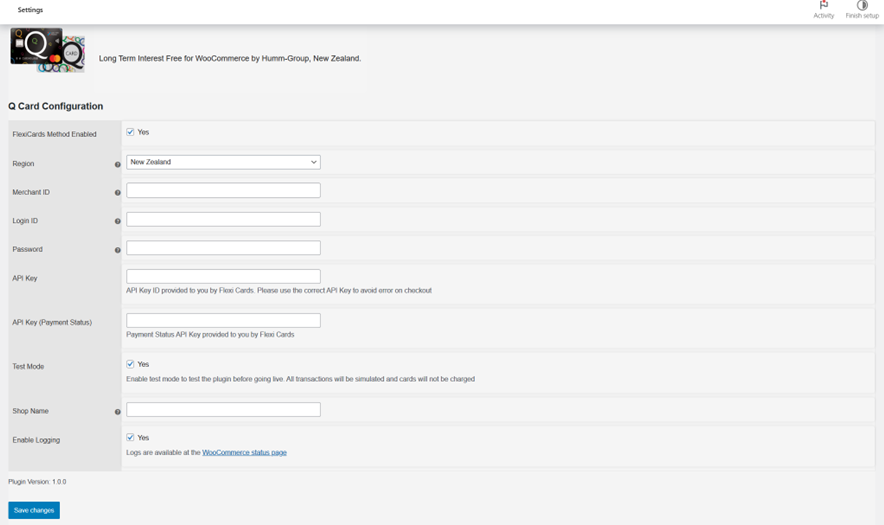
| Setting | Value |
| :------------------------ | :--------------------------------------------------- |
| FlexiCards Method Enabled | Tick to enable payment gateway |
| Region | New Zealand |
| Merchant ID | Merchant ID provided by Q |
| Login ID | Login ID provided by Q |
| Password | Password provided by Q |
| API Key | API Key provided by Q |
| API Key (Payment Status) | API Key provided by Q |
| Test Mode | Untick (Only select "Yes" if you need to do testing) |
| Shop Name | Name of your online store |
| Enable Logging | Yes |
1. Configure the plugin with the correct information, making sure to **Untick** on Test Mode to deploy on your live site.
2. Once you the information has been entered, press **Save Changes**.
> 📘 Require Assistance?
>
> If you require any assistance with the integration, please reach out to us on [Integration Assistance Form](https://docs.qcard.co.nz/docs/integration-assistance#/)
***
## Testing
Should you require testing of the plugin prior to pushing to your live site, please use the following details:
| Field | Value |
| :----------------------- | :--------------------------------------- |
| **Merchant ID** | 12321 |
| **Login ID** | 203399 |
| **Password** | Password01 |
| **GetPaymentURL Key** | 2bef9740cd0be5995e58f9eef3249cabbd65d4bc |
| **GetPaymentStatus Key** | 2bef9740cd0be5995e58f9eef3249cabbd65d4bc |
> 📘 Need help?
>
> If you require any assistance or have any questions, please let us know on [Integration Assistance Form](https://docs.qcard.co.nz/docs/integration-assistance#/)